
Settings and tray
Follow a first session from setup and recording to a live reply, or jump straight to the workspace you need.
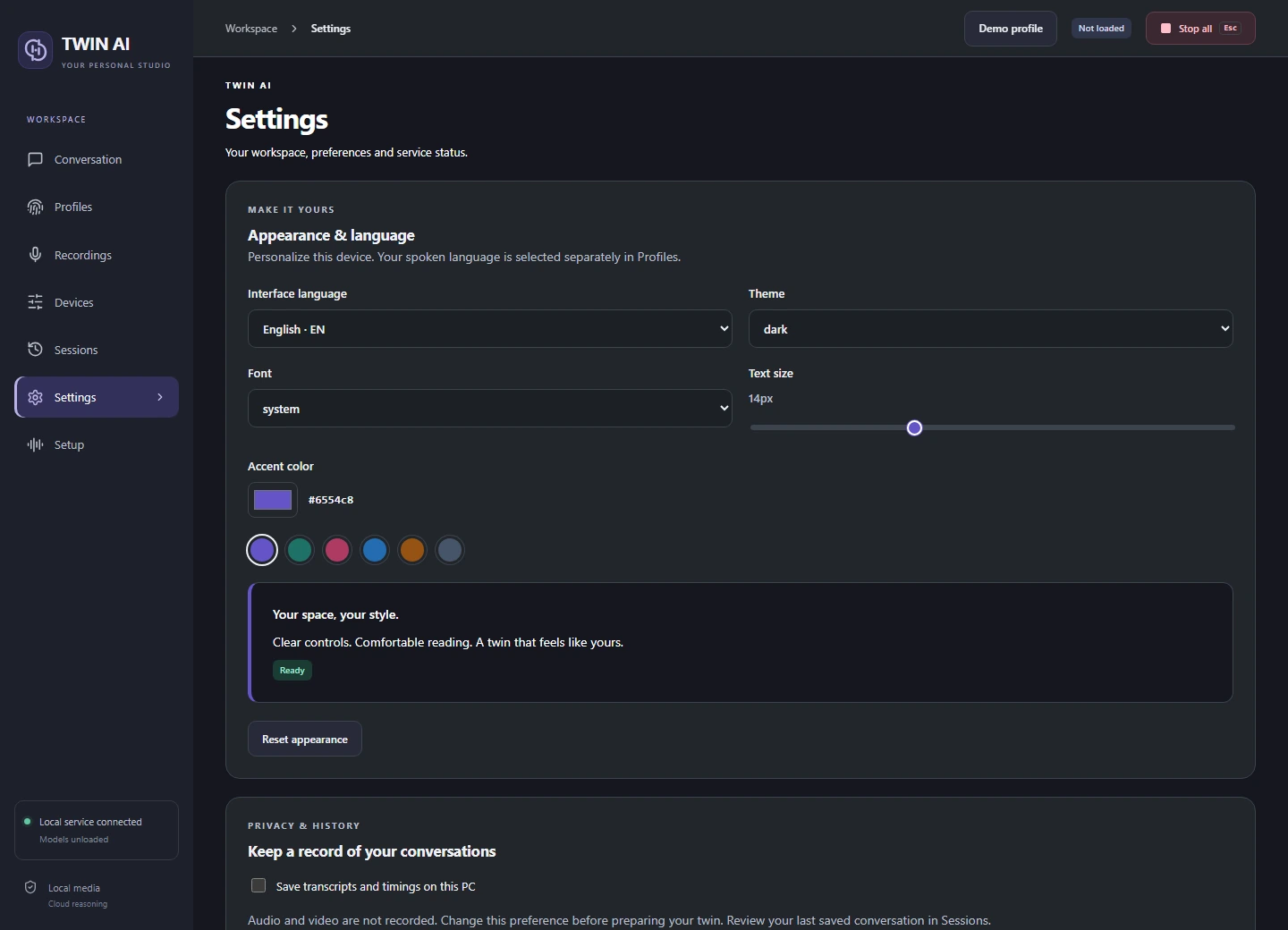
Make the studio yours.
Configure the interface, privacy preferences, service status, and Windows tray behavior from Settings.
Set the appearance
Pick light, dark, system, or custom colors. Choose the accent, font, text size, and interface language. Speech language is selected in Profiles.
Check privacy and status
Choose whether to keep local conversation text and inspect the service status before the next run.
Set global interview shortcuts
Under Interview shortcuts, click a binding and press your preferred keys. The defaults are Ctrl+Alt+1 to load, Ctrl+Alt+2 to start or pause listening, Ctrl+Alt+3 to cycle sources while paused, and Ctrl+Alt+4 to stop and unload. They work while another window has focus.
Use the Windows tray
Reopen the studio, jump to Profiles, or stop listening and unload from the tray. Stop all or Escape stops app-owned activities.
One studio. Three ways to reply.
Give your words a voice.
Record and review voice references, choose a supported speech language, and hear replies through your headset or virtual microphone.